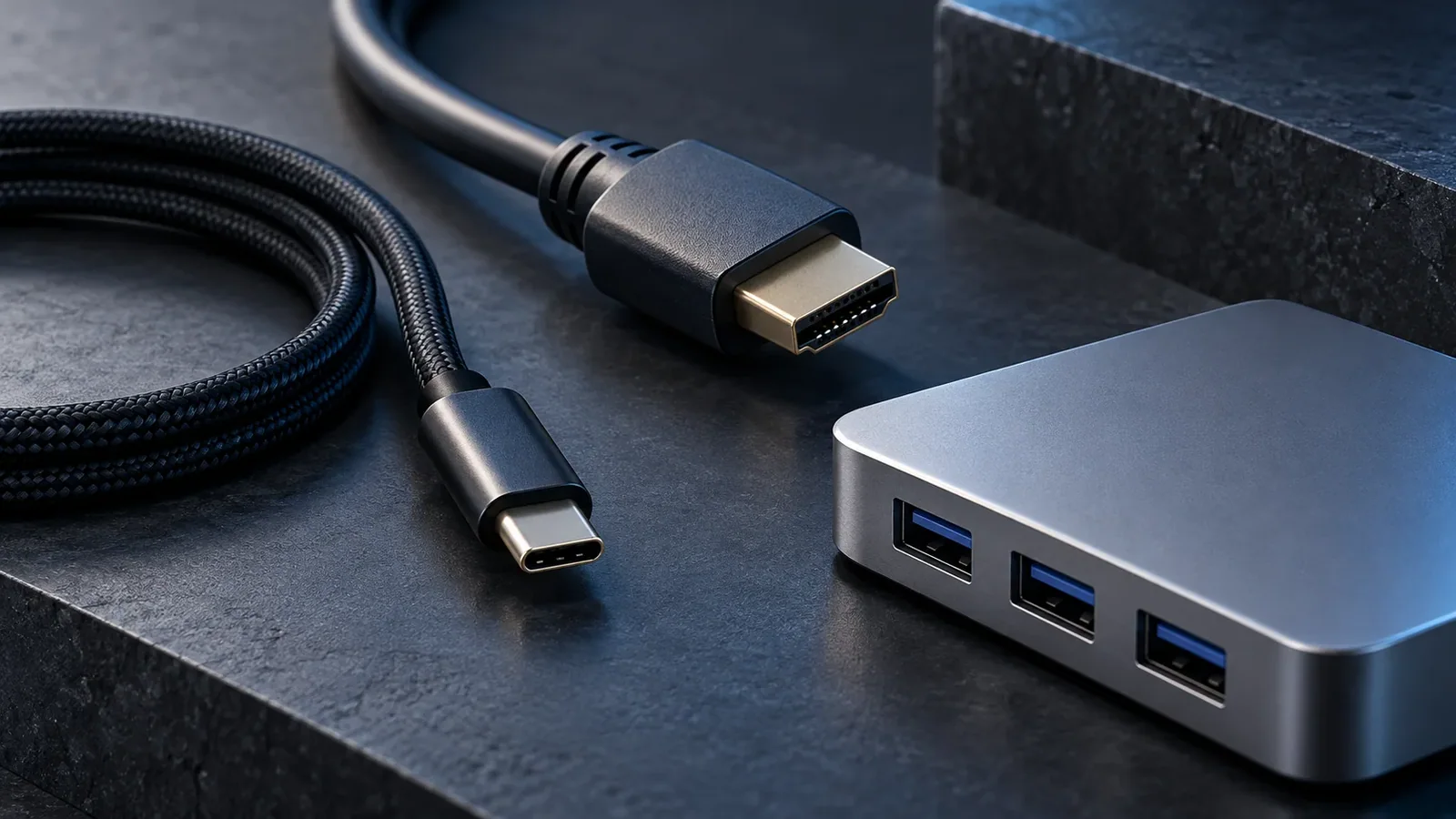
01 / More portsUSB hubs & docking stations
Useful for connecting more peripherals to limited ports or bringing frequently used devices together. USB-C ports can look the same while supporting different features, so check data, video and power support separately.
- The number of devices and types of ports you need
- Matching the features supported by your PC port and hub
- Whether the hub needs external power and each device's power requirements
02 / Securing your PCMounts & stands
Move the PC behind a monitor or under your desk to free up desk space. Check PC and mount compatibility first, and position it so you can still reach the power button and frequently used ports.
- PC dimensions, mounting method and load capacity
- Monitor and mount specifications, including potential obstructions
- A position that leaves vents, ports and cables unobstructed
03 / Connecting displays & devicesCables & adapters
A display connection works best when your PC, cable and monitor support the same requirements. Check the target resolution, refresh rate and signal conversion direction as well as connector shape, and choose the length your setup needs.
- Your PC's output port and monitor's input port
- Cable specifications for your target resolution and refresh rate
- The adapter's input/output direction and compatibility requirements
04 / Storing filesExternal storage
Separating files to transfer, active projects and backups makes choosing storage easier. Consider connection type, portability and transfer time alongside the capacity you need.
- Capacity for original files, finished work and backups
- Interfaces supported by your PC and storage device
- A backup plan that does not keep important files on just one device
This guide introduces accessory types and what to consider when choosing them. It does not indicate products currently on sale or items included with your PC. Check individual product information for compatibility and actual package contents.