







Think of Your Busiest Hour
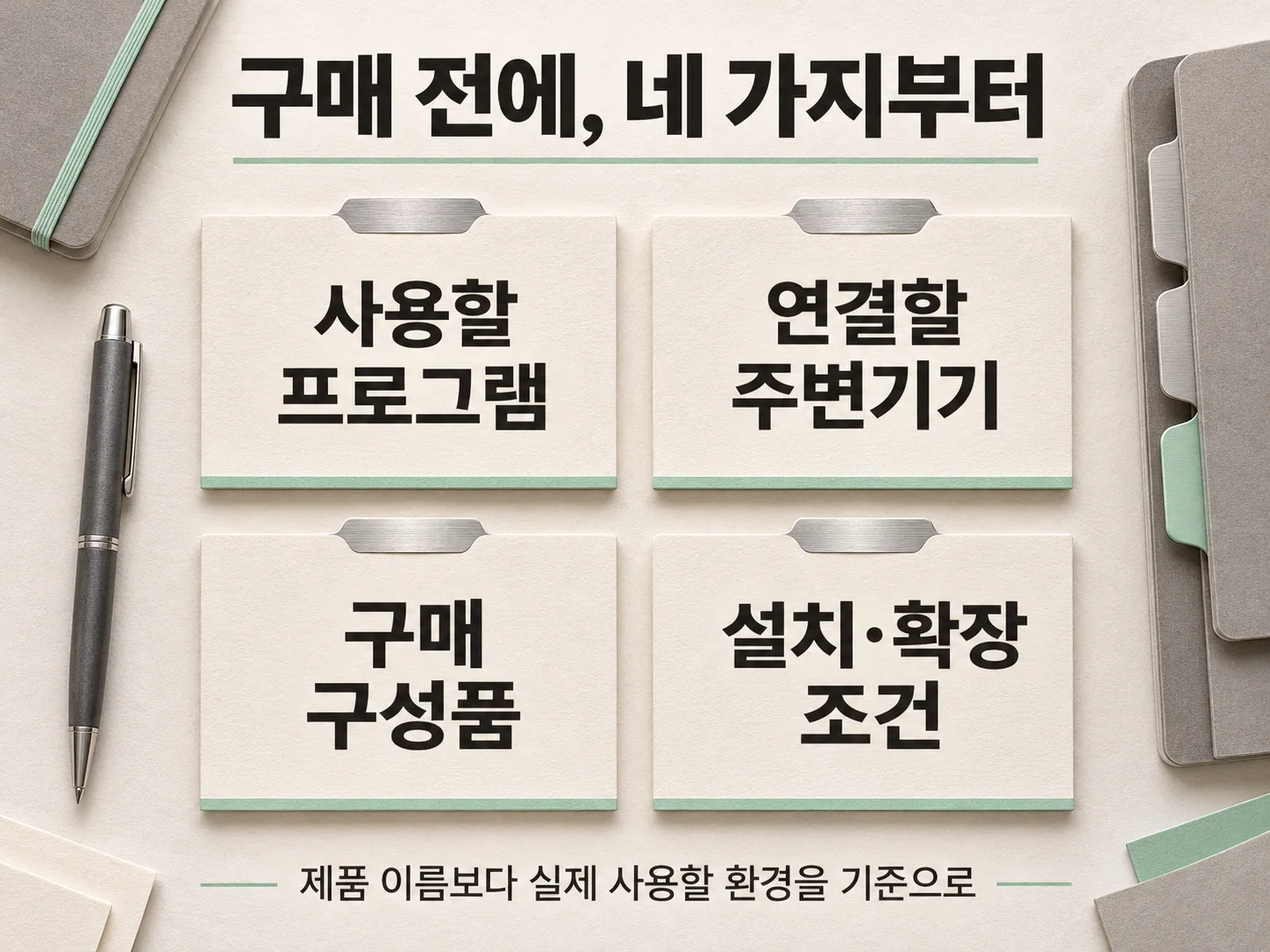
When choosing a mini PC, start with the programs you use at the same time. Writing one document places different demands on a PC than comparing several files during a video meeting. Think of your busiest hour and list the programs and connected devices you use then.
Avoid choosing a performance tier based only on the name of your work. Preparing a simple quote and working with a large spreadsheet full of complex formulas are both office tasks, but their demands differ. Design work also varies with image size, layer count, and video length. Recording the scale of your actual work makes it easier to identify the specifications that matter.
For Office Work, Focus on Your Daily Routine
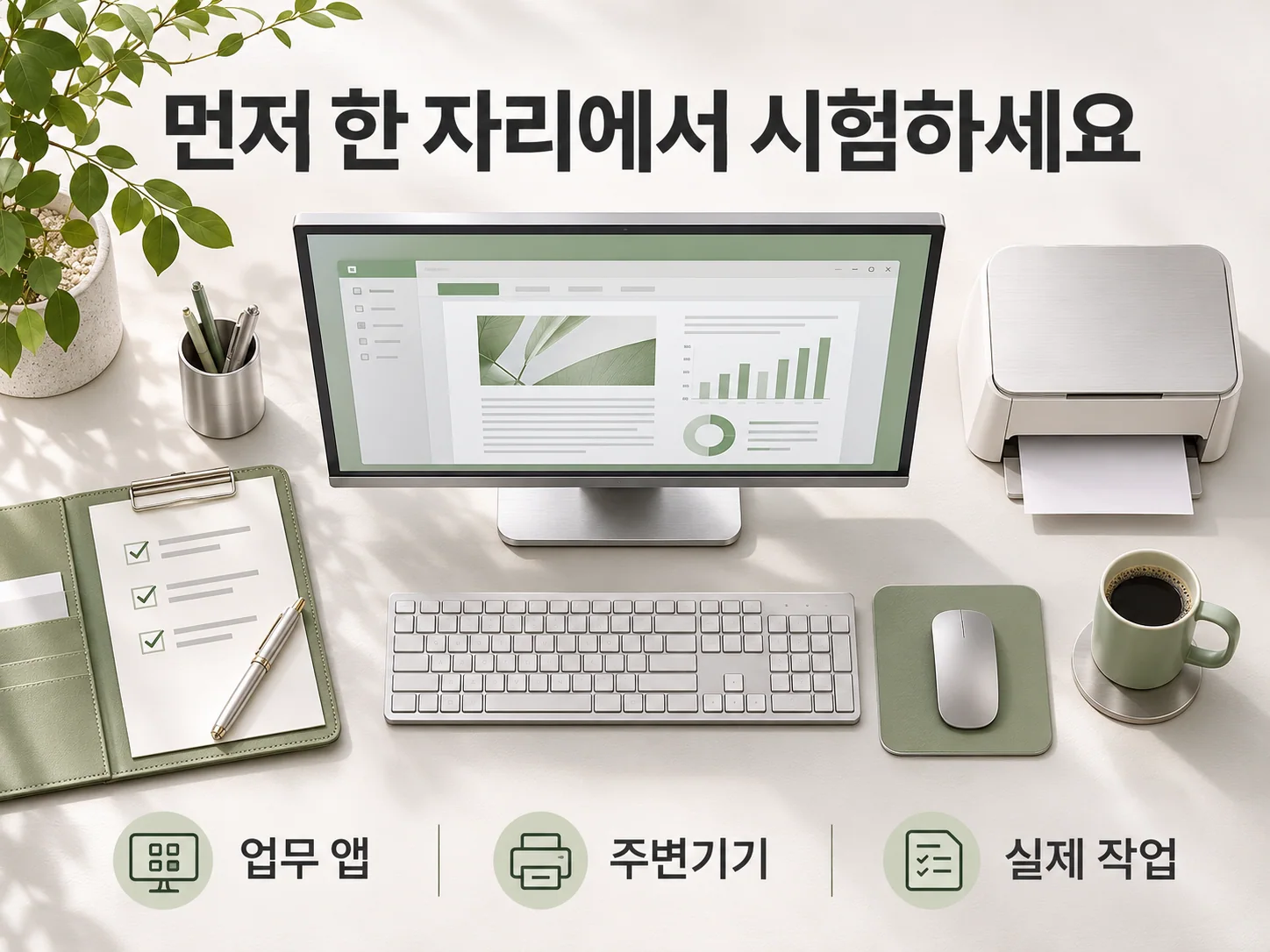
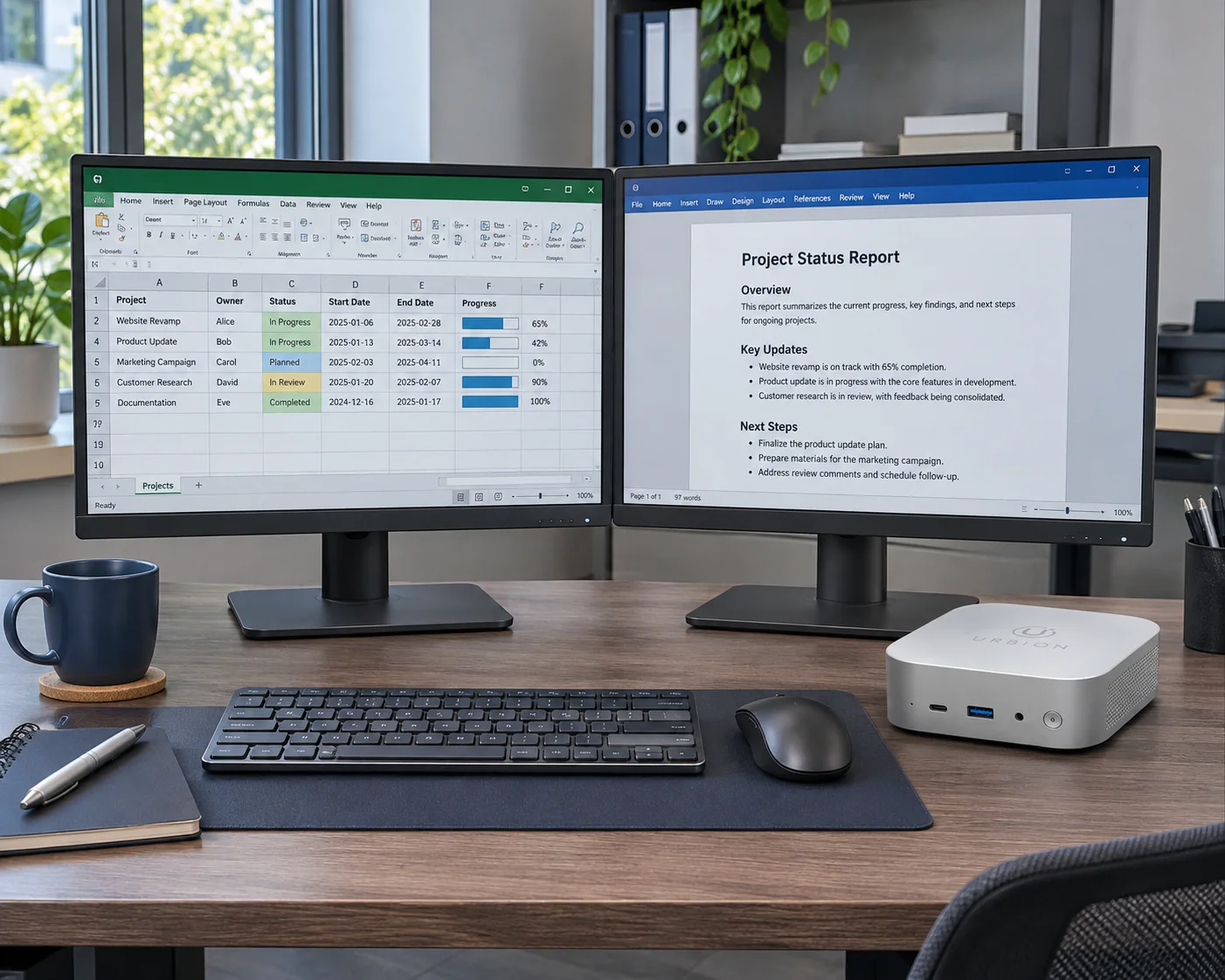
If your day revolves around documents, email, web-based tools, and online meetings, start by looking at an office configuration. What matters is more than whether a single program can run. Check whether you can open files while sharing your screen, connect both a printer and a camera, and continue using your existing monitor.
Include cables, monitors, storage, and software in your budget alongside the computer. If a small display forces you to switch constantly between documents, or too few USB ports make you swap devices repeatedly, improving the surrounding setup may help your workflow more directly than moving to a higher PC tier.
For Demanding Work, Start with What Makes You Wait
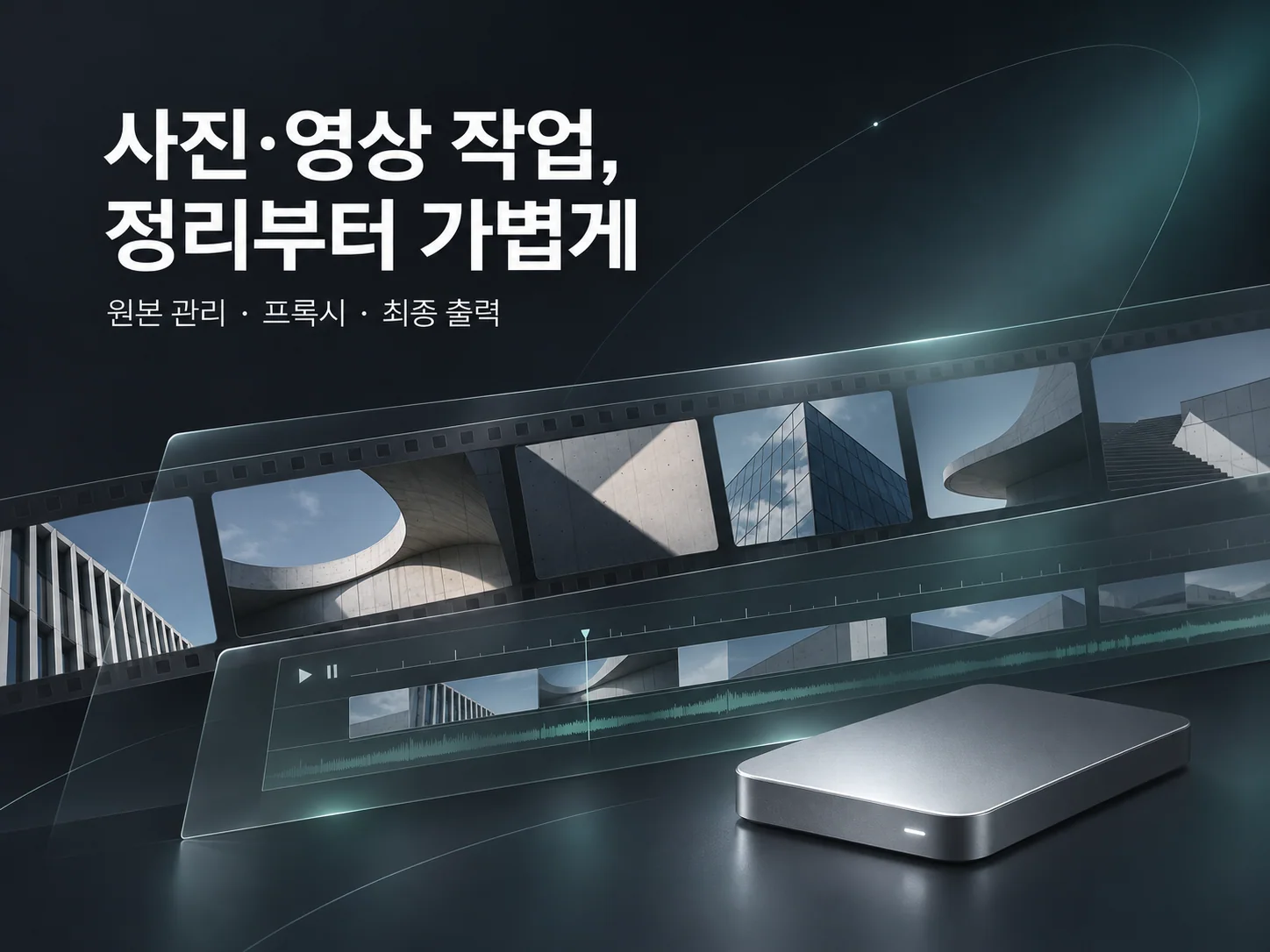
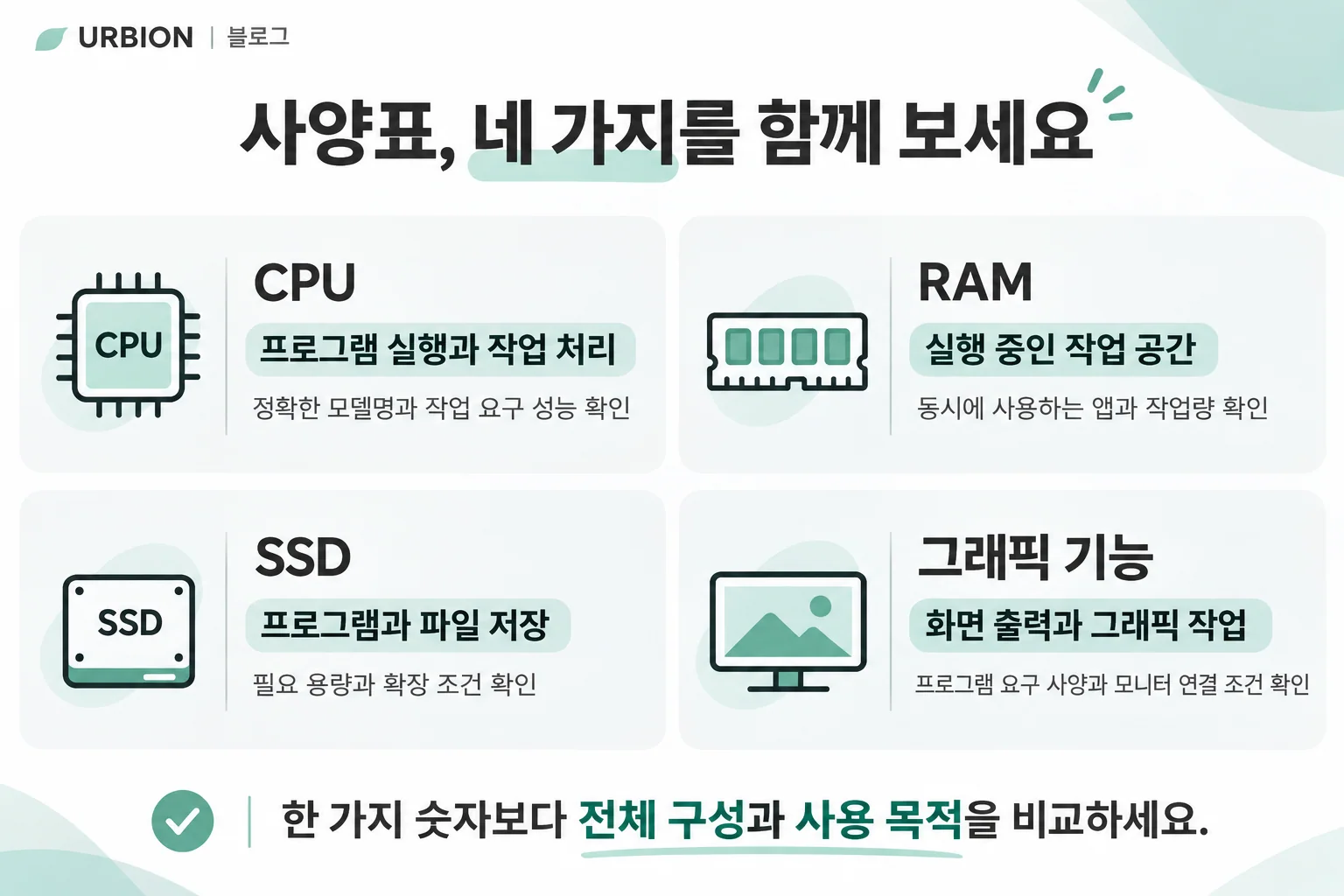
For resource-intensive tasks such as batch photo processing, video editing, development tools, and large datasets, consider the CPU, memory, and graphics together. Intel's business PC selection guide also explains that processing and memory needs vary by workload. A high-performance label alone does not establish how well a particular program will run.
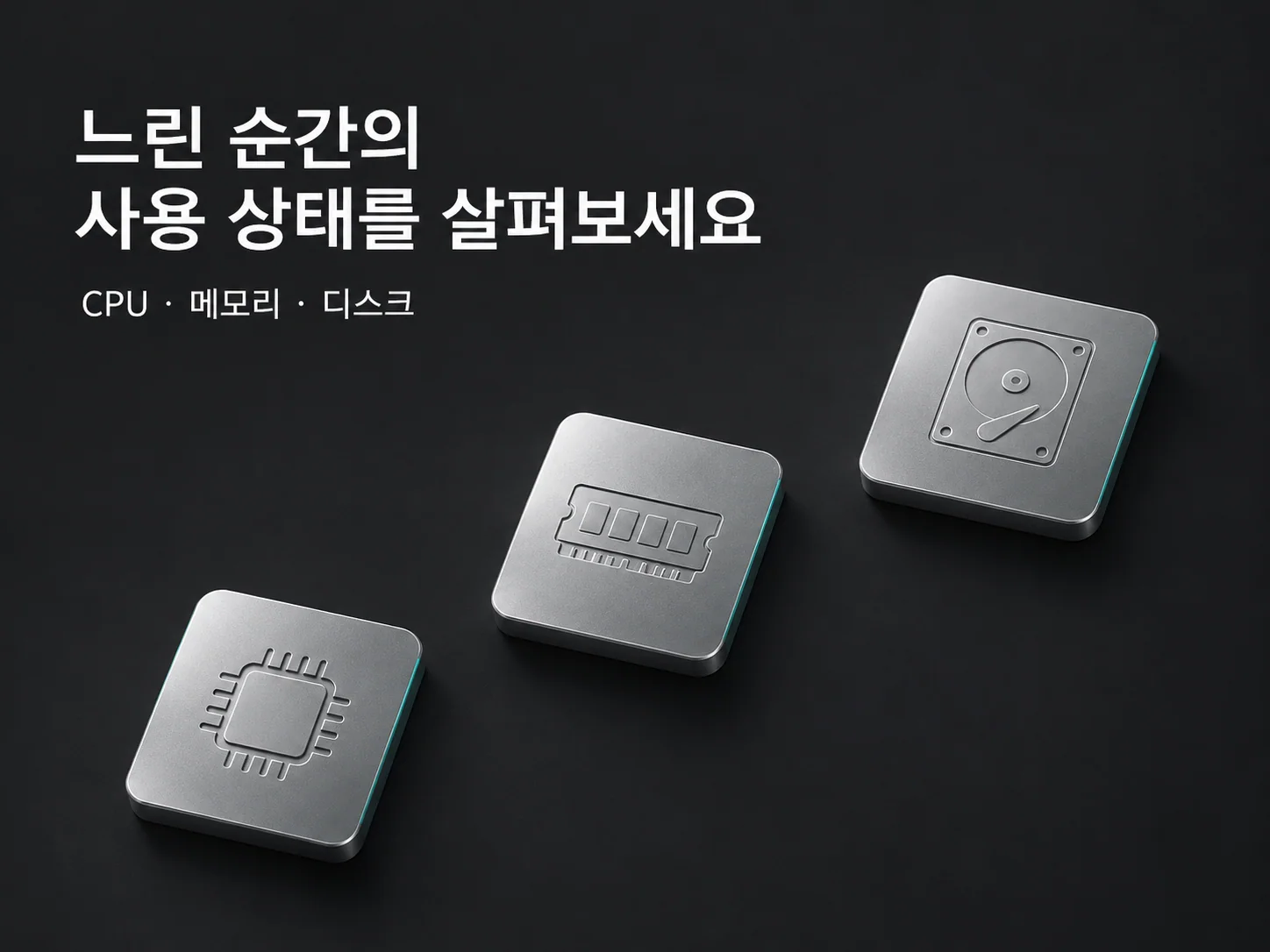
Identify exactly what you wait for on your current PC: loading files, switching between apps, or exporting video. Check the software maker's recommended specifications and, where possible, compare tests using the same files and settings. Numbers from tests run under different conditions do not provide a direct ranking.
Read the Specifications Beside the CPU Just as Carefully
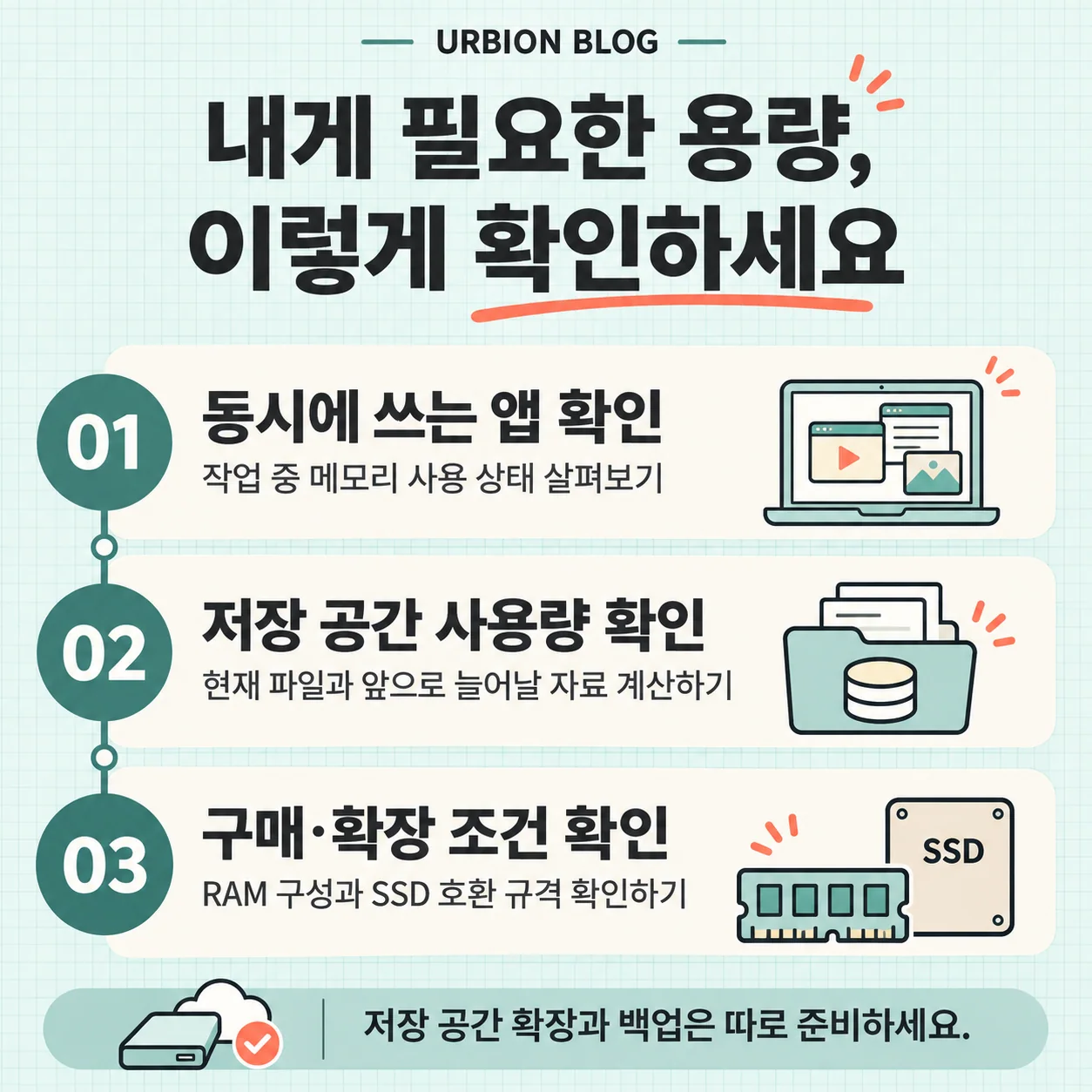
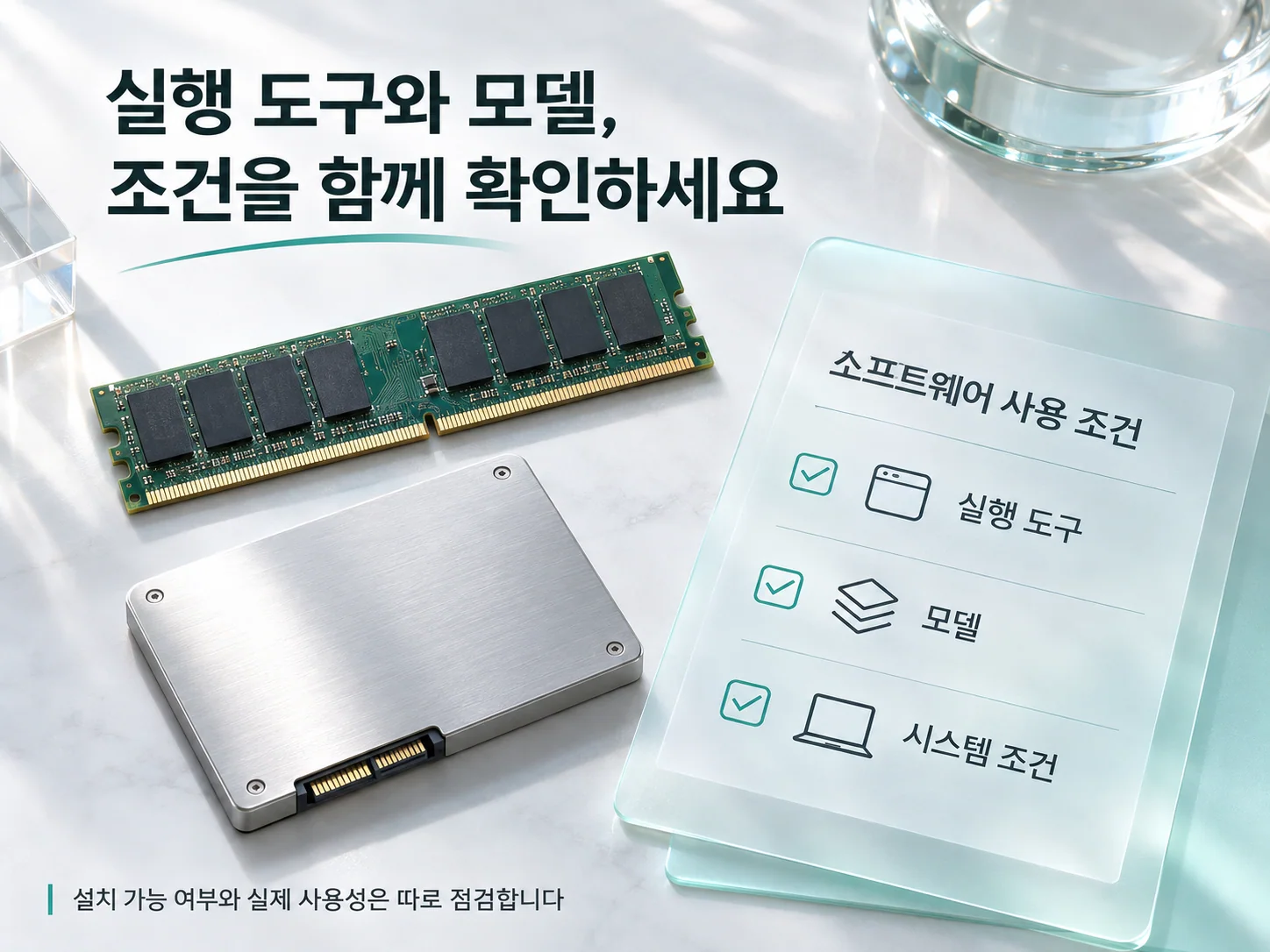
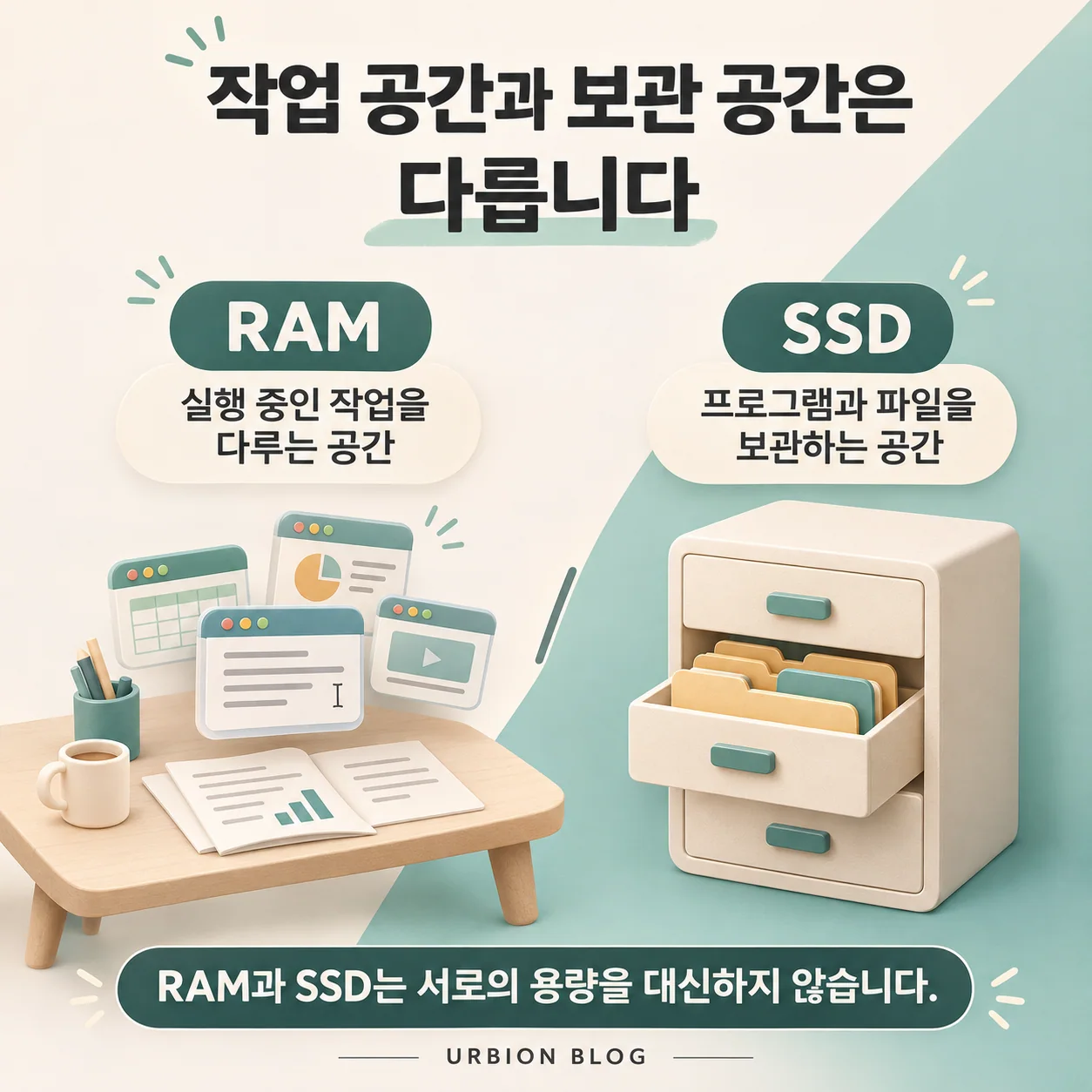
RAM is working space for active tasks; an SSD stores the operating system and files. They have different roles, so more storage does not automatically make multitasking smoother. Even with enough memory, you still need separate space for project files and backups.
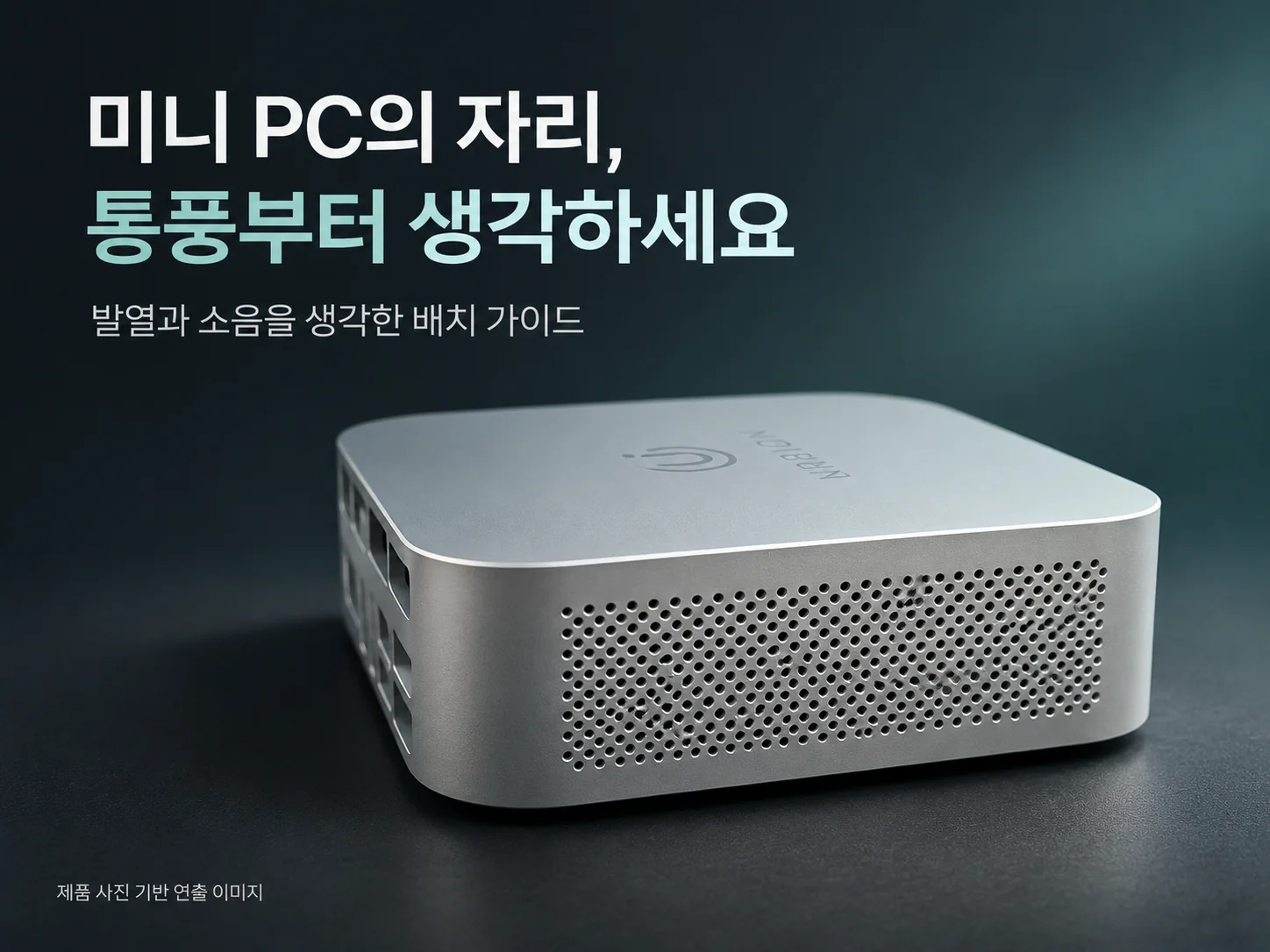
Also check whether you can expand later. Internal layouts vary by mini PC model. Read the model's documentation to find out whether memory is replaceable, which SSD formats and mounting spaces are available, and any expansion limits. Neither being a mini PC nor being small tells you the answer by itself.
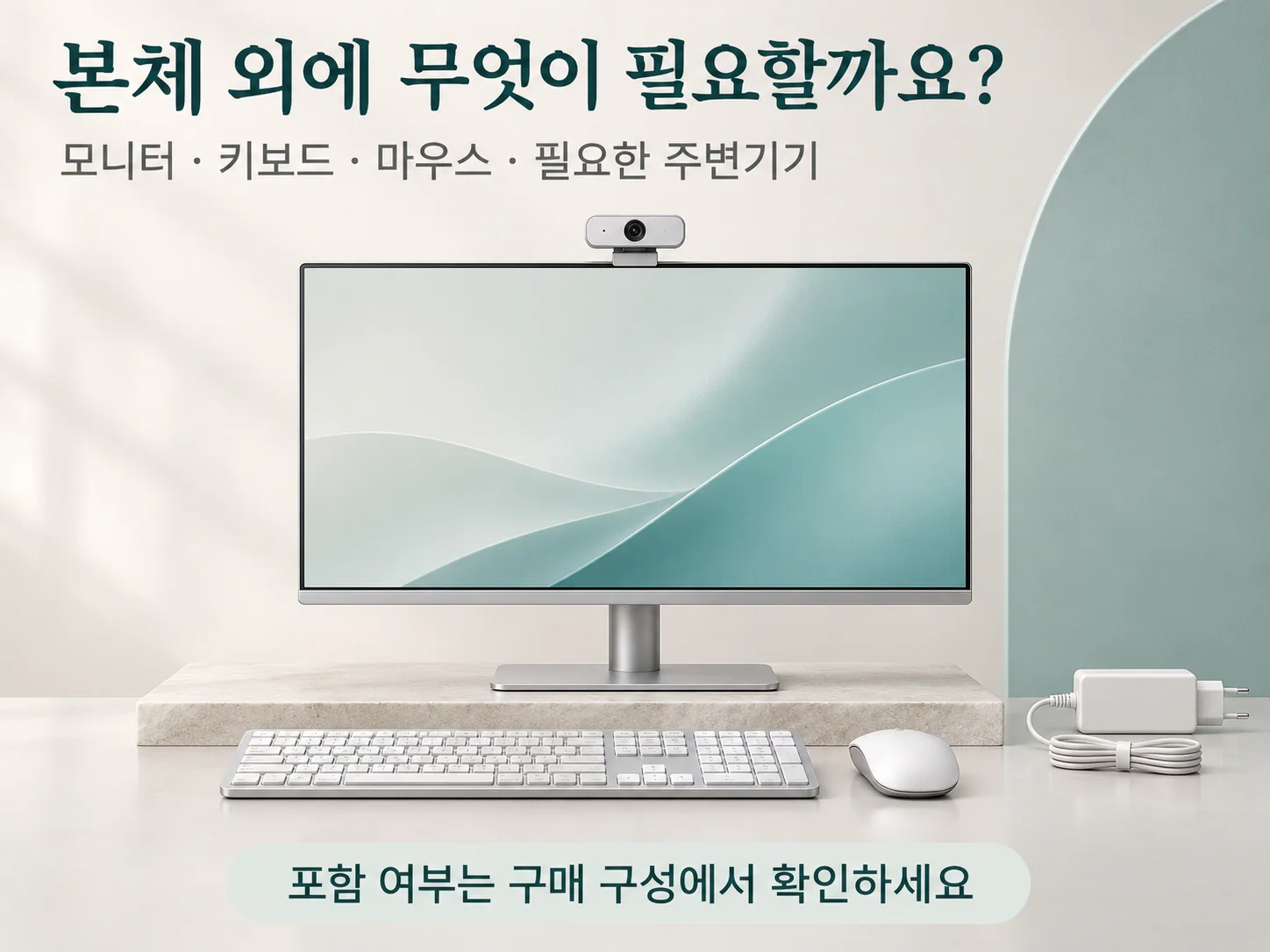
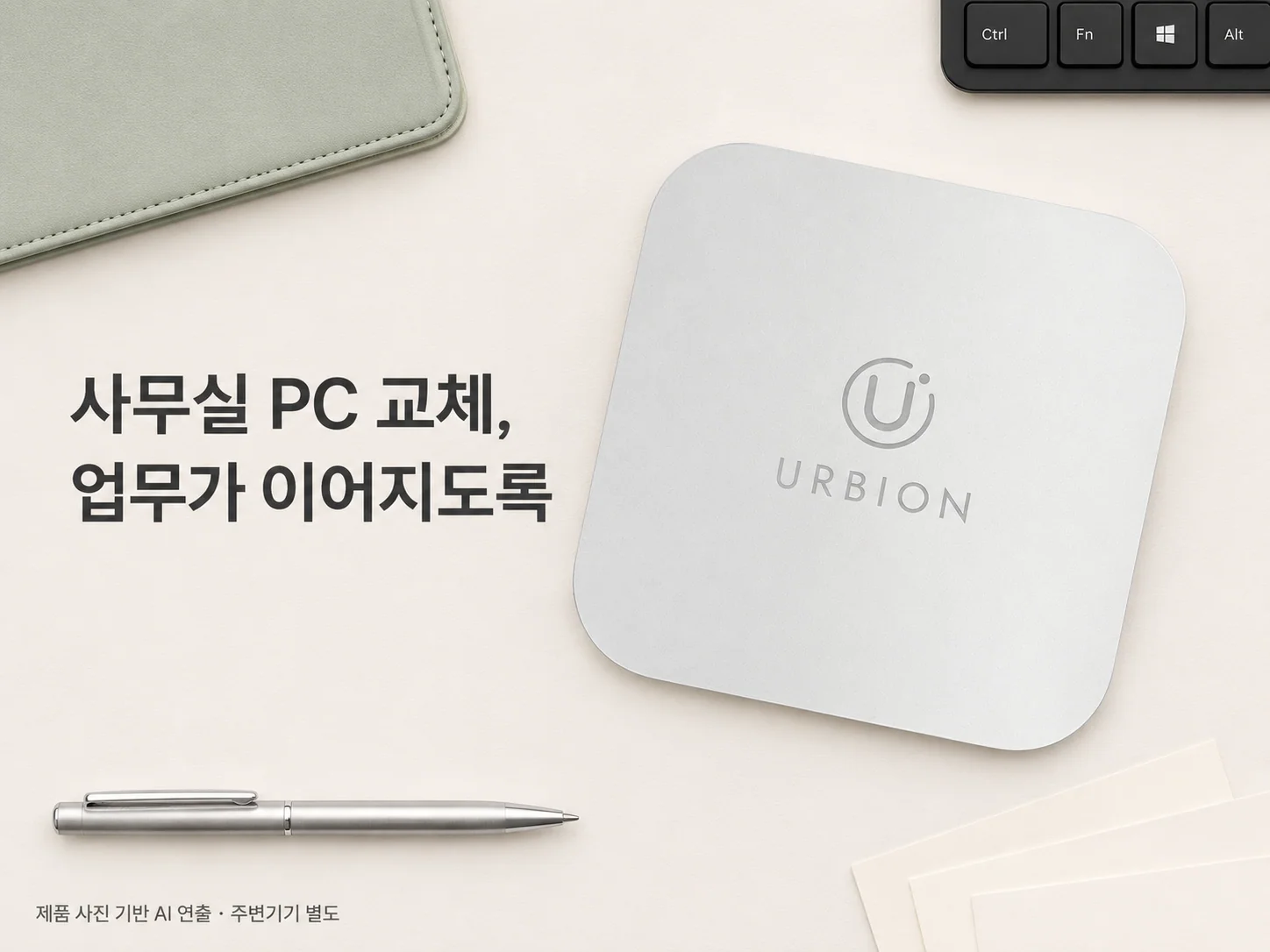
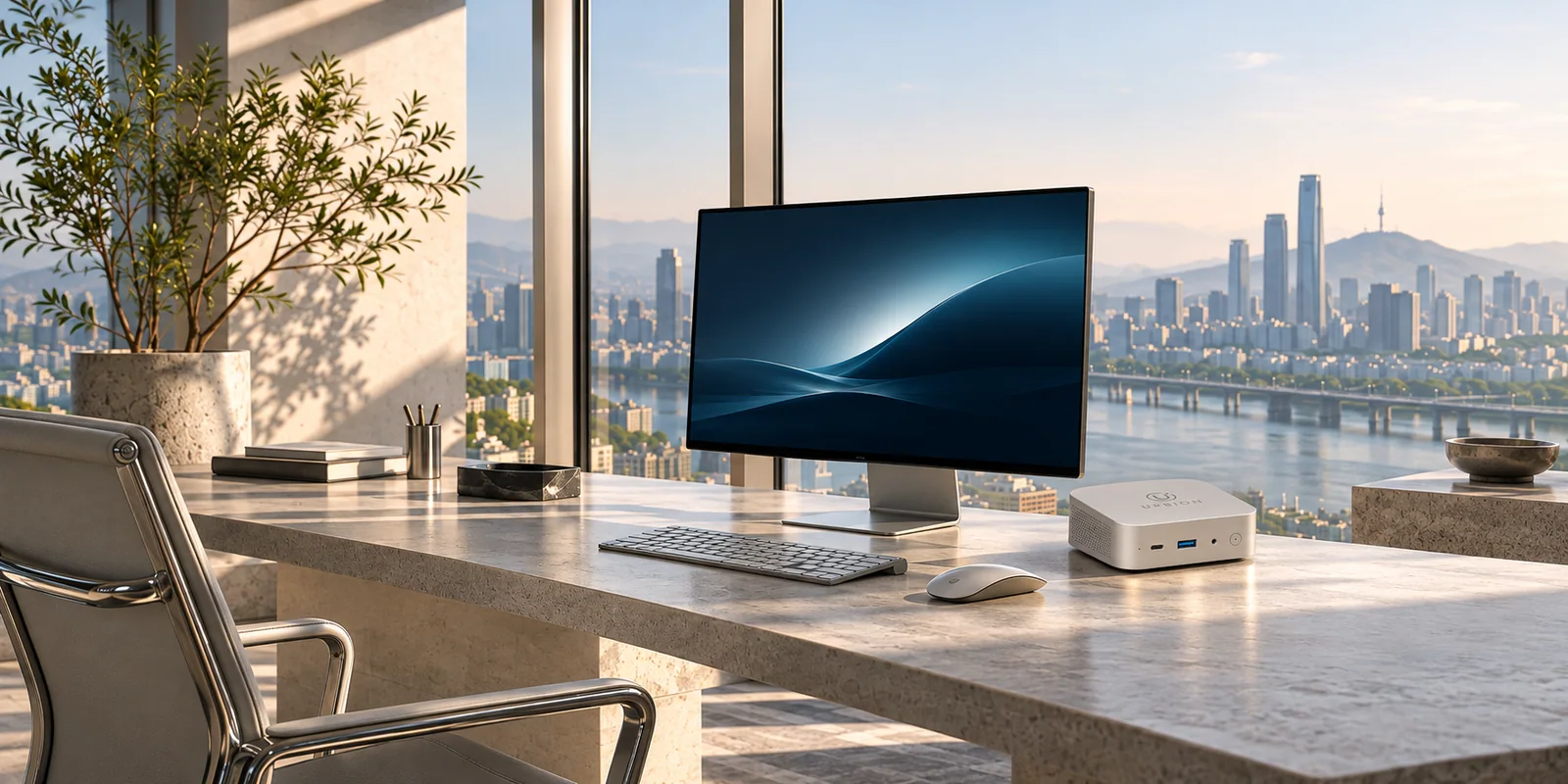
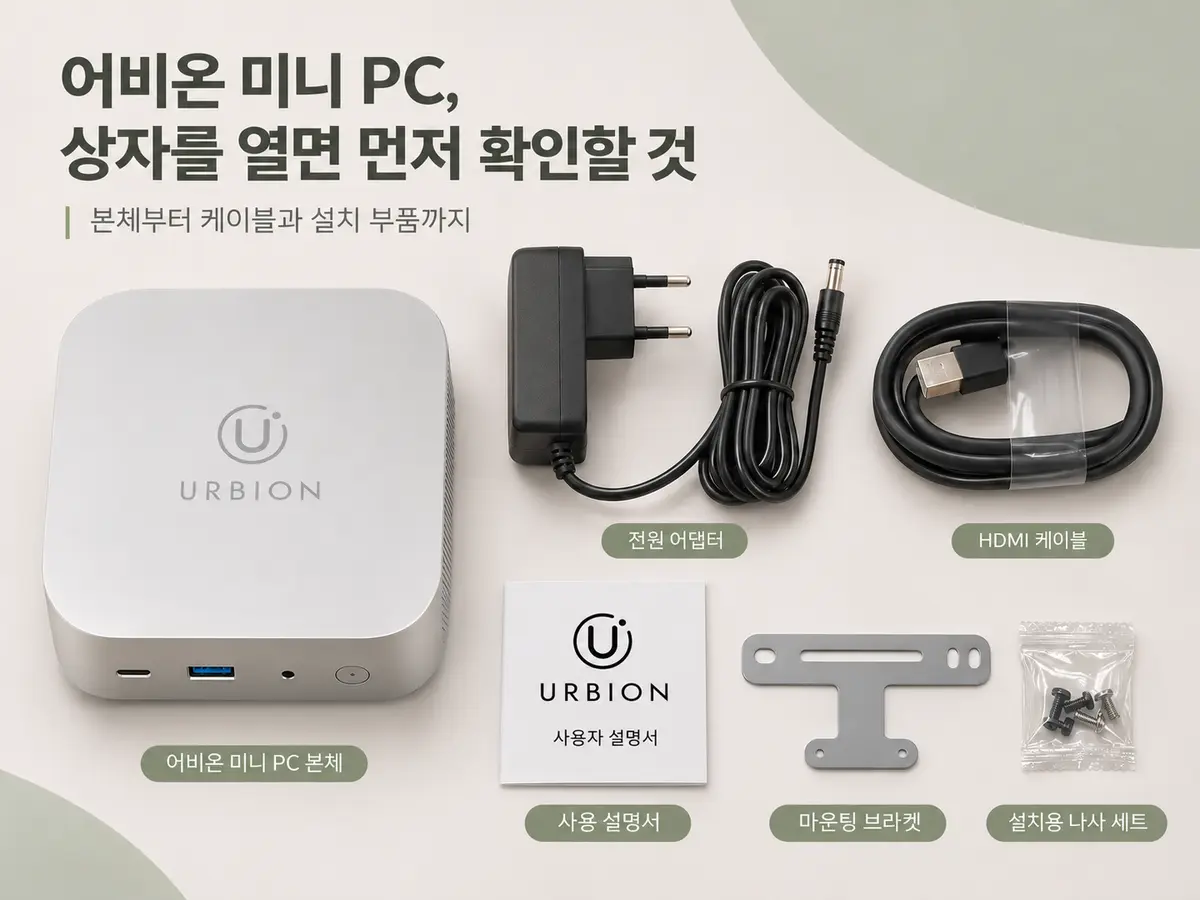
In a comparison table, list the standard configuration separately from optional extras. Even on the same product page, the actual purchase may differ by memory, SSD, and operating system inclusion. Compare final configurations with your required options, and check whether peripherals in the photos are included. Distinguishing illustrative photos from the package contents helps you understand exactly what you are buying.
Map Your Connections to Make Choosing Easier
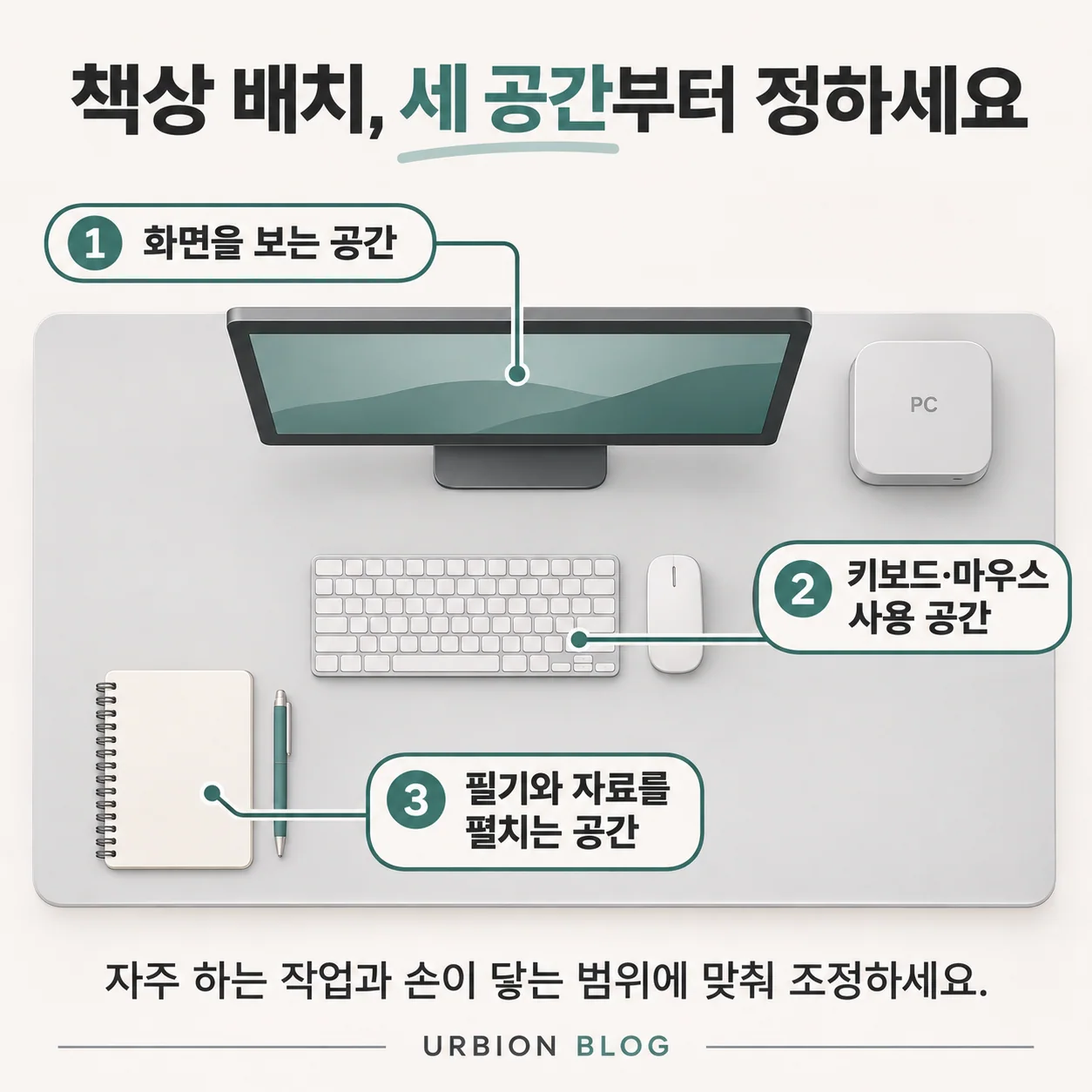
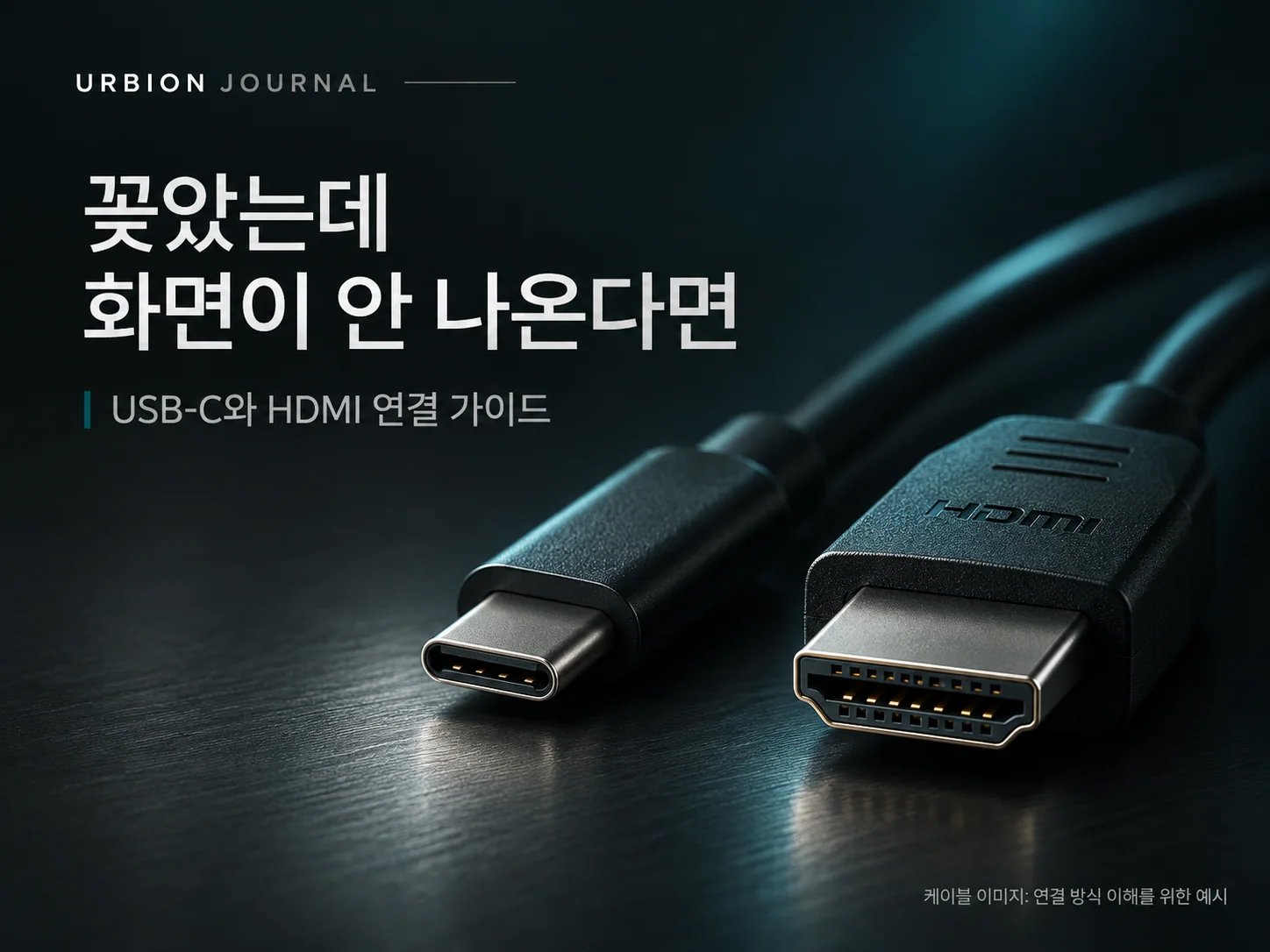
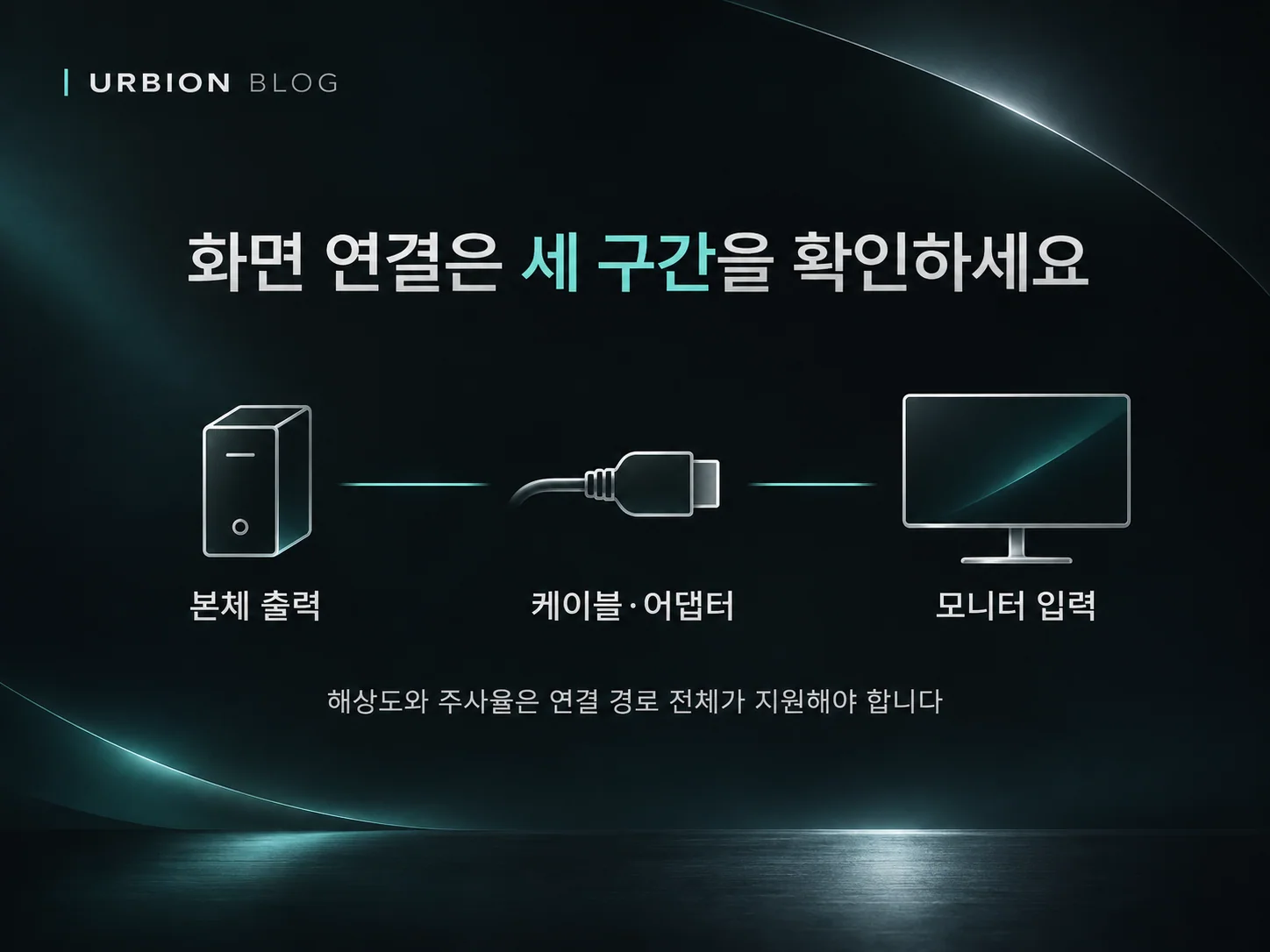
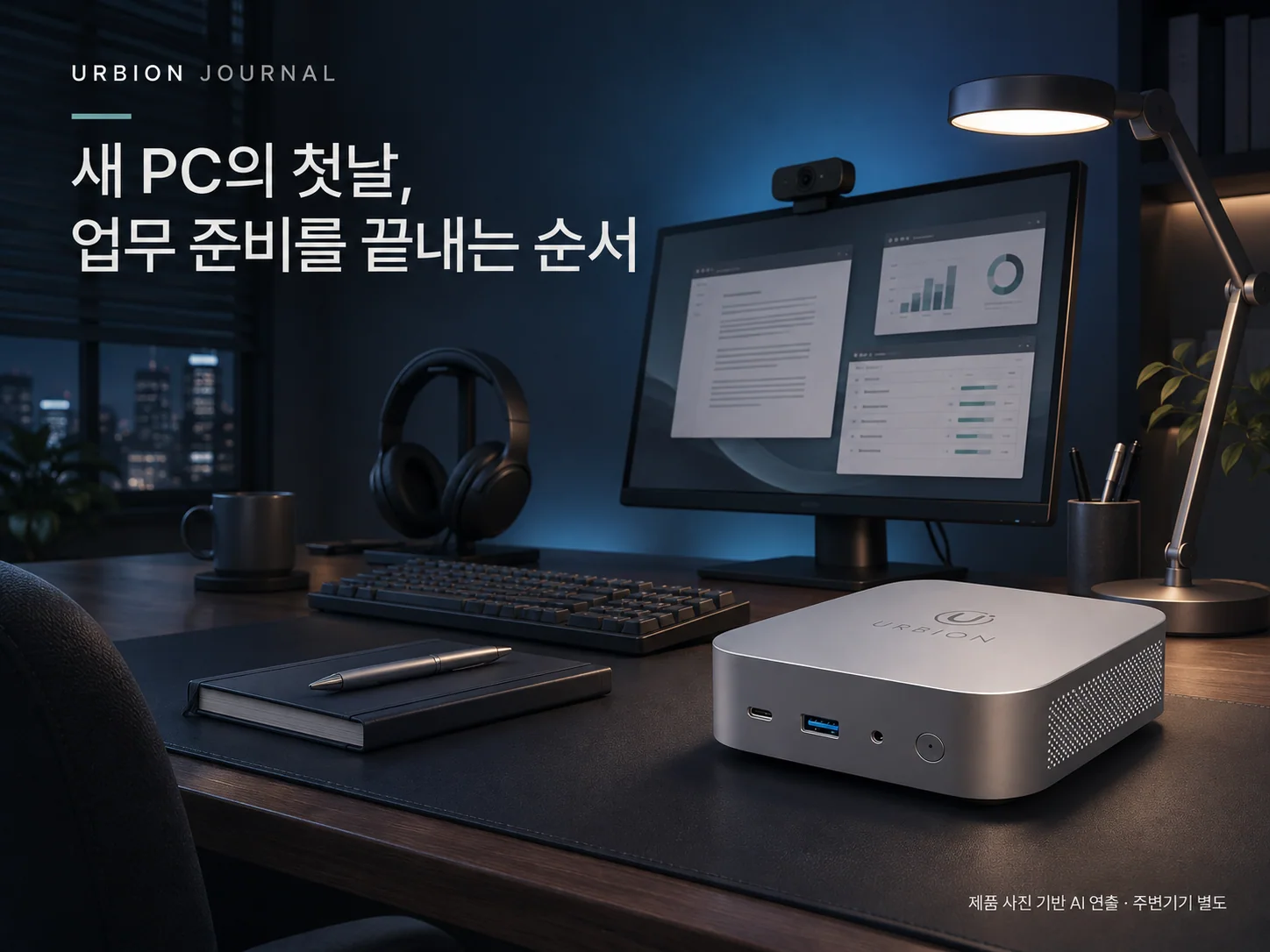
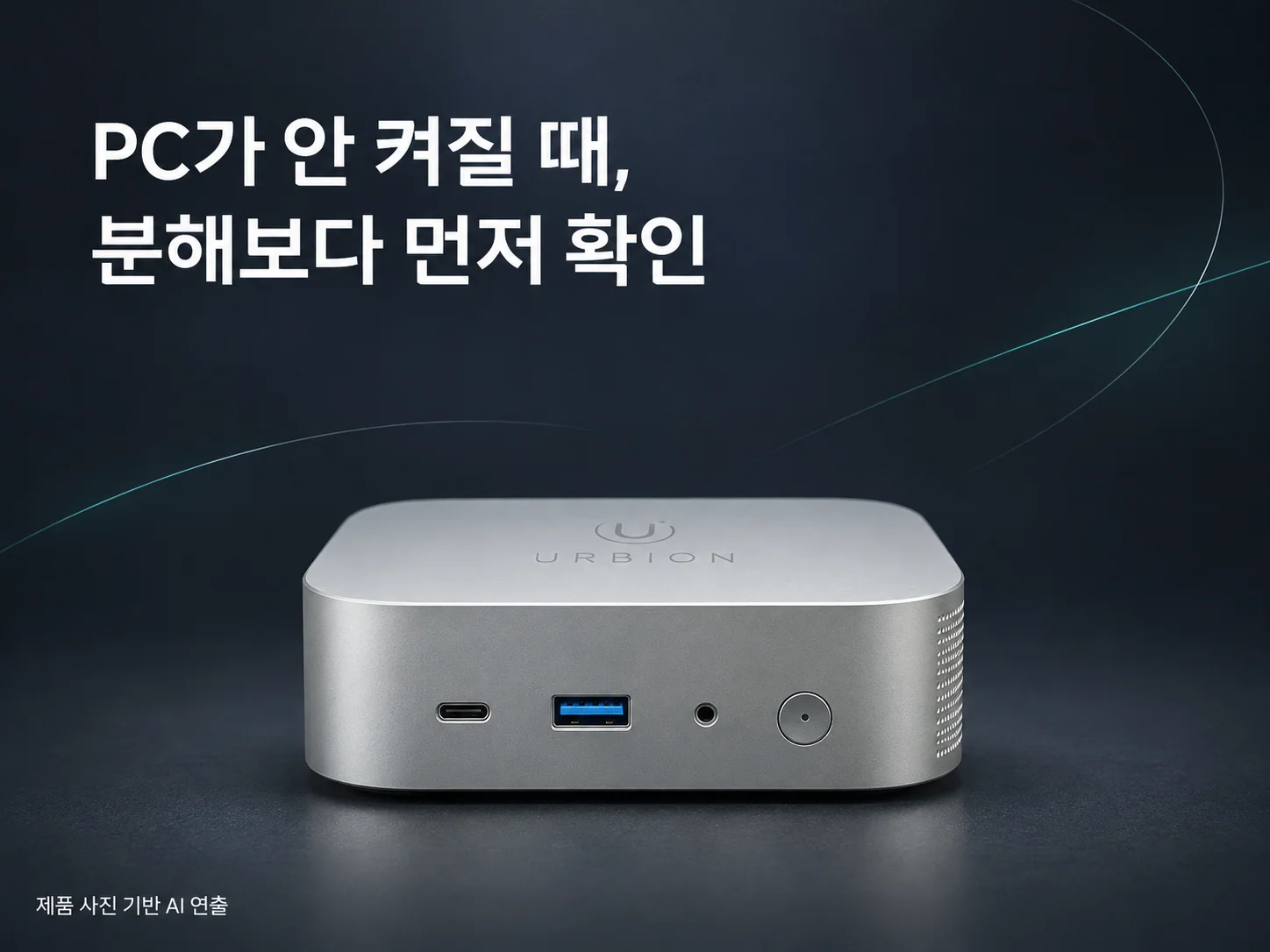
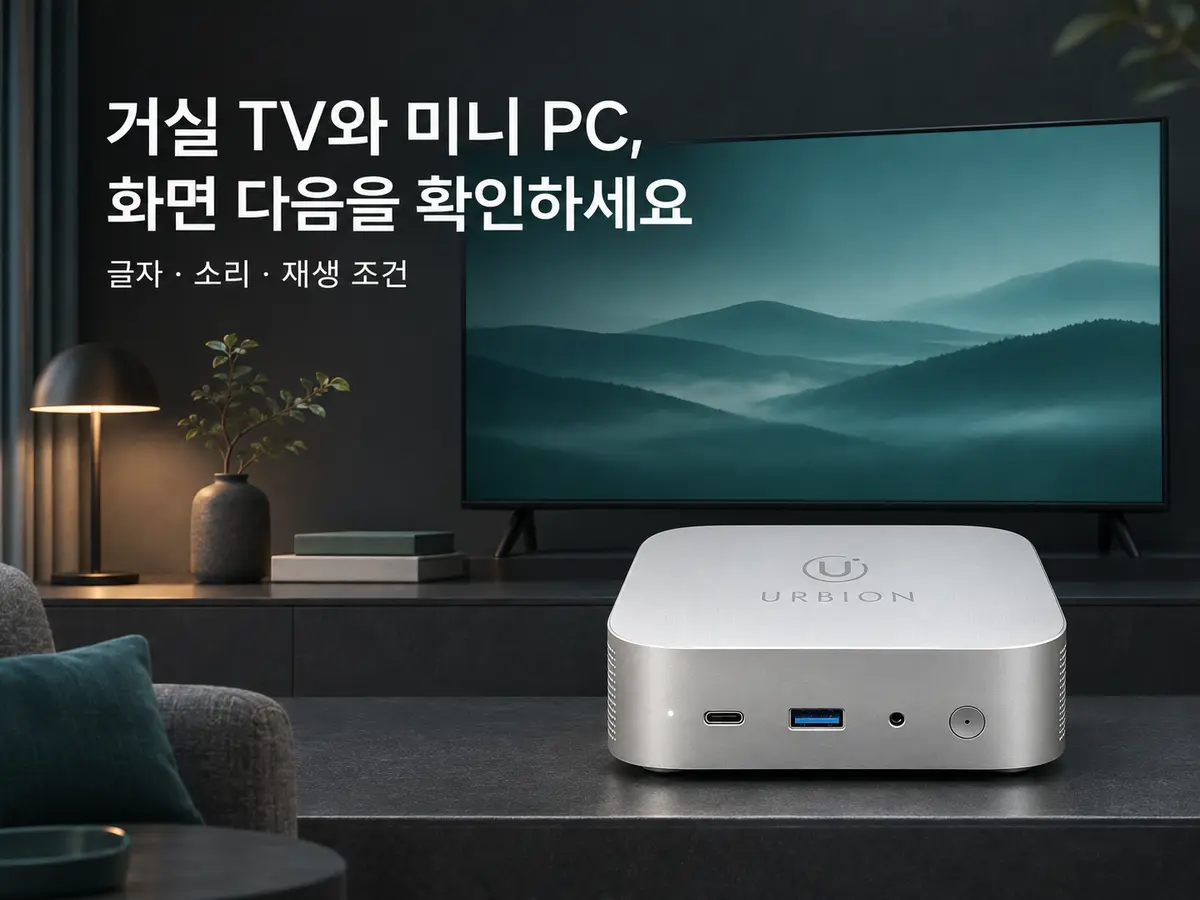
Picture two monitors, a keyboard and mouse, a meeting camera, and an external drive on your desk. Assign each device a port. Ports such as USB-C can look alike while supporting different video and power features, so check the number of ports separately from their capabilities.
When asking about dual-monitor support, include your monitor model names and desired resolution and refresh rate. Listing your programs, file sizes, and simultaneous apps also helps someone assess a configuration. Precise questions can reduce unnecessary purchases and lead to answers that reflect your actual setup.
- List your everyday apps and your most demanding tasks separately
- List the monitors and USB devices you will connect at the same time
- Check the standard RAM and SSD configuration and expansion conditions
- Compare budgets including the PC, peripherals, and software
Start with a Configuration That Fits Your Work
A good choice is a combination that keeps your daily work moving comfortably. Apply these criteria when exploring URBION's office and performance PCs. Start with your current work, then consider the features and workload you expect to need.
This article is a general guide to choosing and using a product. Check features and compatibility against the specifications of your actual model, operating system, and peripherals.